HOW CAN I USE THE BLUETOOTH FEATURE?
- This unit has a Bluetooth transmitter. It can transmit audio to an external Bluetooth speaker.
- The PJ712 has built-in full range speakers. However, you can also connect external speakers for more sound options.
NOTE: Bluetooth is OFF by default when the projector first powers ON. Bluetooth can be turned ON or OFF from the OPTIONS Menu.
- Enable Bluetooth on the Bluetooth receiver (Bluetooth speaker, Bluetooth soundbar etc.) that you would like to connect.
- Power on the projector and make sure the projector's Bluetooth is ON (see note above). The projector will begin searching for nearby Bluetooth devices to connect to and will automatically initiate pairing. Note: To eliminate confusion, disable Bluetooth on all receivers to which you do not wish to connect.
- When successfully paired, the Bluetooth receiver should indicate it is connected, usually with a chime or tone. Check the user manual on your Bluetooth receiver for more information.
- When successfully connected, the projector will display the Bluetooth receiver's (your speaker or sound bar) name on the top right portion of the Main Menu screen, and sound played from the projector will be heard through the Bluetooth receiver.
- After initial pairing, the projector and the Bluetooth speakers will stay paired unless unpaired manually by the user or erased due to a reset of either device. If this occurs or you find either unit is unable to connect, repeat the above steps.
CAN I CONNECT HEADPHONES OR A SPEAKER TO THIS UNIT VIA AUX CABLE?
Yes, this unit has a Headphone jack (audio out). You can use the included 3.5mm to RCA stereo cable, or your own 3.5mm Aux cable to connect an external speaker or headphones to the Headphone Jack on the projector. The projector will automatically detect the connection and the audio will be heard from the connected speaker, headphones, etc.
Note: The yellow video plug on the included 3.5mm to RCA stereo cable will not be needed in this setup and will not need to be connected.
The PJ712 has built-in full range speakers. However, you can also connect external speakers or headphones/earbuds for more sound options
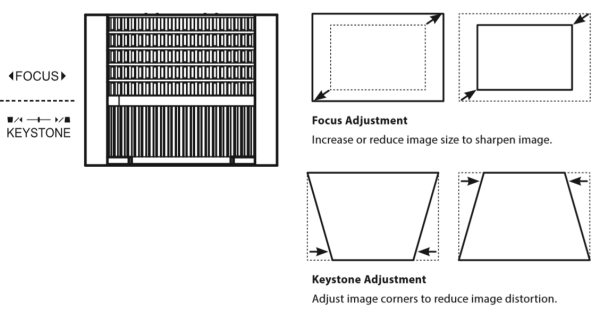
HOW CAN I ADJUST IMAGES?
HOW CAN I CONNECT MY SMARTPHONE TO THIS UNIT TO WATCH VIDEOS?
You can use an HDMI adaptor to connect your phone to this unit. Please contact your smartphone manufacturer’s customer service for the appropriate HDMI adaptor for your phone.
CAN THIS PROJECTOR CONNECT TO A TABLET/SMARTPHONE THROUGH BLUETOOTH?
You cannot project onscreen images with Bluetooth. Bluetooth technology does not stream video or image, it streams audio. You can use an HDMI adaptor to connect your tablet/smartphone to the projector. Please contact your tablet/smartphone manufacturer’s customer service to find the best HDMI adaptor for your device.
This unit has a Bluetooth transmitter. It can transmit the audio to an external Bluetooth speaker or headphone/earbud. (The PJ712 has built-in full range speakers. However, you can also connect external speakers for more sound options.)
HOW CAN I CONNECT DEVICES TO THIS PROJECTOR TO WATCH MOVIES, VIDEOS, etc.?
To connect devices to this projector to project images, videos, movies, games etc. follow the guidelines for your preferred connection option below.
HDMI
HDMI offers superior sound and picture quality and is the easiest way to play media from a computer, laptop, DVD/Blu-Ray player, cable box, gaming console, streaming device, or another device with an HDMI output. Requires an HDMI cable (included) and a device with an HDMI output.
- Using an HDMI cable, connect the HDMI 1 or 2 input on the projector to the HDMI output on your media player.
- Set the projector's Source to the connected HDMI input and use the controls on the connected device to select and play media.
Note: You can use an HDMI adaptor to connect your smartphone/tablet to this unit. Please contact your smartphone or tablet manufacturer’s customer service for the appropriate HDMI adaptor for your device.
Audio/Video Input
Requires a 3.5mm to RCA audio/video cable (included). This connection can be used with media players that have RCA stereo audio outputs and composite video output, such as DVD players, cable boxes etc.
- Connect the 3.5mm to RCA audio/video cable to the AV input on the unit.
- Connect the 3.5mm to RCA audio/video cable to the RCA stereo audio outputs and composite video output on the media player.
- Set the projector's Source to AV and use the controls on the connected player to select and play media.
MicroSD & USB Storage Devices
Supports MicroSD cards and USB drives up to 32GB. Supports AVI, MOV file formats.
- Load a USB drive into the USB Port or a MicroSD card to the MicroSD Card Slot.
- Set the Source to Media Player, then use the Arrow buttons to select "C: Drive" or "D: Drive." (C: Drive is the SD card, D: Drive is the USB).
- Use the Arrow buttons to select Music/Photo/Movie, then press the OK button to begin playing content from the connected storage device.